
You type a command and press Enter. A program starts in milliseconds. Your operating system performs a long chain of controlled steps. These steps involve the shell, the kernel, the CPU scheduler, and memory management.
This blog traces that journey from the first keystroke to active execution.
Step 1. From Command to Process Creation

Your shell reads your command and parses the text. The shell runs as a normal user process. After parsing, the shell requests the kernel to start a new program.
The kernel performs few actions:
Allocates a process structure in memory
Assigns a unique PID or process ID
Loads the executable file from disk
Maps code and data into virtual memory
Places the process in a ready queue
The executable file contains machine instructions and metadata. The kernel loader maps these sections into the process address space. The process now exists but waits for CPU time.
Step 2. User Mode and Kernel Mode

Modern CPUs enforce privilege separation between User mode and Kernal mode.
User mode runs application code. Hardware access stays restricted. Your program reads and writes memory only inside its own address space.
Kernel mode holds full privileges. The kernel controls hardware, memory, and devices.
When your program needs system resources, it performs a system call. A system call triggers a controlled switch into kernel mode. The kernel validates the request, performs the operation, and returns control to user mode.
This boundary prevents faulty programs from corrupting the system.
Step 3. fork and exec
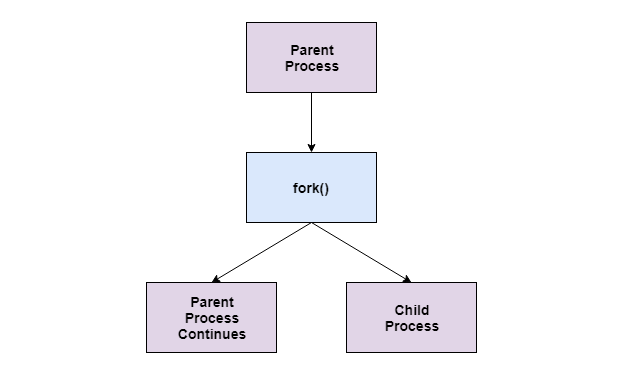
Unix style systems use a two step model for launching programs.
The fork operation creates a child process. The child receives a copy of the parent memory space and file descriptors. Both processes continue execution from the same point.
The child then calls exec. Exec replaces the child memory with a new program image. The PID remains unchanged. Only the code and data change.
Your shell follows this pattern:
The shell calls fork
The child process calls exec with your command
The parent shell waits or continues based on job rules
This model keeps process management simple and predictable.
Step 4. Process States and Scheduling

Each process moves through defined states:
New → process gets created
Ready → process waits for CPU time
Running → process executes on a core
Waiting → process pauses for input or output
Terminated → process exits
The scheduler decides which ready process runs next through different CPU scheduling algorithms like FCFS, SJF, SRTF, Round Robin etc.
Most schedulers use priorities and time slices. A time slice limits how long a process runs before a switch.
During a context switch, the kernel:
Saves CPU registers of the current process
Loads registers of the next process
Updates scheduling data
Rapid switching creates the illusion of parallel execution.
Step 5. How the OS Tracks Resources
The kernel tracks every process with a process control block.
This structure stores:
Scheduling information
Memory mappings
Open file tables
Accounting data
Virtual memory gives each process an isolated address space. Page tables map virtual addresses to physical memory. The kernel enforces protection rules through these mappings.
File descriptors connect processes to resources. Each descriptor points to a kernel table entry. This entry refers to files, devices, or pipes. The kernel manages permissions and reference counts.
Live Terminal Experiments
You can observe these concepts with simple commands.
Run this in your terminal:
ps aux
You see a snapshot of active processes. Each line represents a kernel tracked process with CPU and memory usage.

Run this next:
top
This display updates in real time. You can watch processes change states as the scheduler rotates tasks.

Start a long running program in one terminal. Observe it with ps or top in another terminal. Stop the program and watch the entry disappear.
Every program you run triggers process creation, scheduling, and resource tracking in a tight loop. These steps happen constantly in the background and shape how your system behaves.
The next time you press Enter in a terminal, you see more than a command. You see a full process lifecycle running under your control.